
There are many ways to merge .flw files. The following method ensures that your original .flw files are left in tact. In this example, we’re going to merge these four LinkWare files:
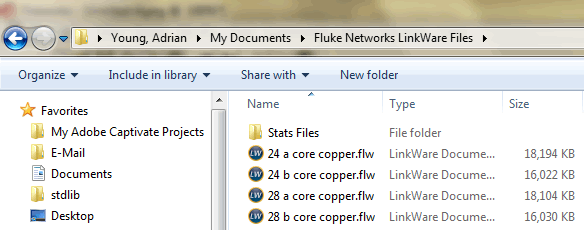
Go ahead and open LinkWare (do not double click on any of these files above) to see:
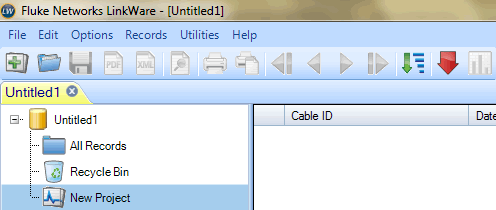
This "Untitled1" is going to be the blank (empty) file we merge the .flw files into. Click on the red arrow and select LinkWare .FLW file to open a new window:
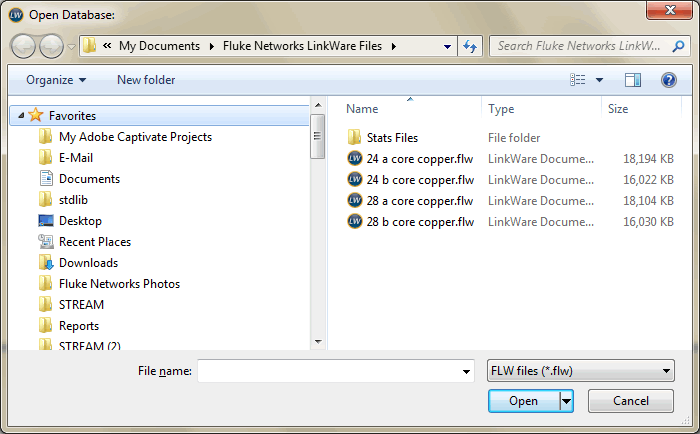
We’ll start with the first LinkWare file "24 a core copper.flw" by selecting that file and clicking on Open to see:
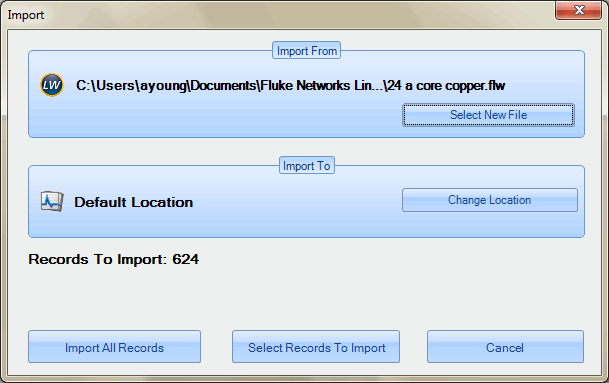
You could choose to import select records, but most users will simply click on Import All Records. That’s what we will do in this example. Once imported, we see:
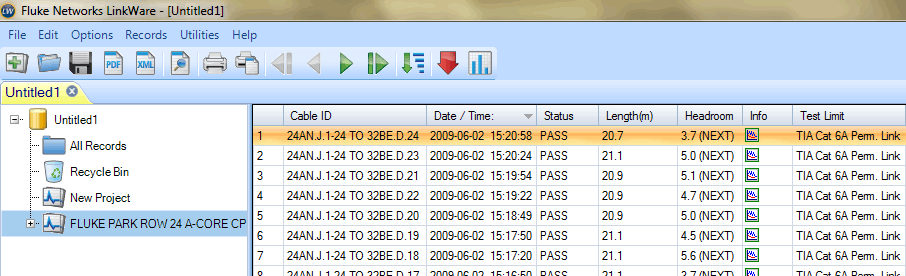
Now we’ll proceed with the next file to be merged. Click on the red arrow in the tool bar again, select LinkWare .FLW file and in this example "24 B core copper.flw". We’ll then Import All Records again to see:
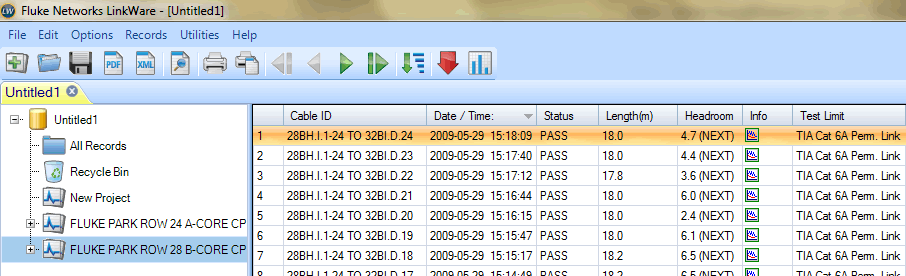
As you can see, there is no danger of altering the existing .flw files. They remain in tact. There is also another great additional benefit in doing it this way. Any duplicates are automatically found during the merging process. For example:

Here LinkWare has discovered that you have already imported some of these test results before. Clicking Yes avoids duplicates. Of course you could get rid of any duplicates later using the Delete Duplicate Records feature in LinkWare found under Utilities.
Once you have finished importing your .flw files into "Untitled1", click on File > Save As... and save it as "Fluke Park Merged" for example.
Again, your original .flw files are left in tact. If you make a mistake with your new merged file, you can still go back to the original .flw files.